
#049 BC AUTHENTICATE APIs USING OAUTH 2.0 (ON-PREMISES)
In the past years, Basic Auth has been a traditional method for accessing APIs, but OAuth2 has emerged as a more robust and secure alternative. Starting October, 2022, the use of Basic Auth for web service authentication is deprecated and not supported in Business Central online.
For On-Premises environments, we should also adopt OAuth2 and in this ArquiTips we will show how it can be done.
- Create a new Business Central Service instance.
- Enable SSL for OData services (and SOAP if it still applies to your scenario).
A guide about using SSL certificates on Business Central on-premises can be found here.
- Setup SSO for your Business Central new service instance.
The setup to activate SSO can be found in a previous ArquiTips here.
- Setup the Azure App Registration previously created for SSO.
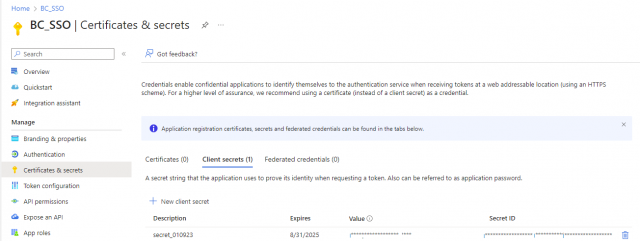
Create a new secret to be used exclusively to access the APIs. In the App Registration card, go to Certificates & secrets and create a new entry.
Go to API permissions and add permissions for Business Central.

Add a new Redirect URI – enter the URL for your Business Central on-premises browser client, followed by OAuthLanding.htm à https://MyServer/BC210/OAuthLanding.htm.
- Set up the Microsoft Entra application in Business Central
Create a new application user in Business Central to match the client id from the App Registration. Go to Microsoft Entra Application and create a new entry:
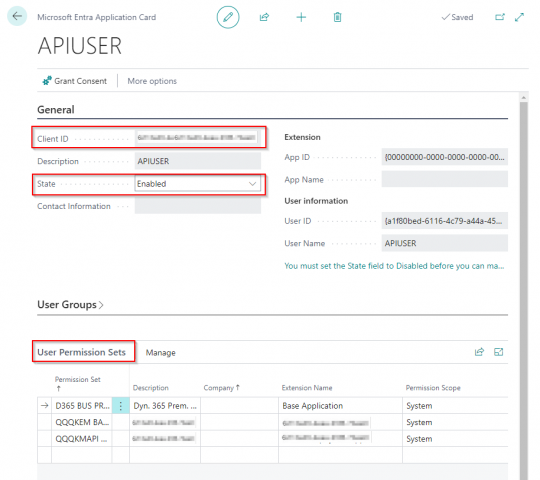
You can pick the client ID from the App Registration card, in the Azure portal.
You must set the Status to Enable and assign the relevant permissions to the user.
Finally, you must Grant the Consent, but only if you haven’t done it in the Azure portal before.
- Test the API using Postman
The first step will be to get a token as follows in the example:
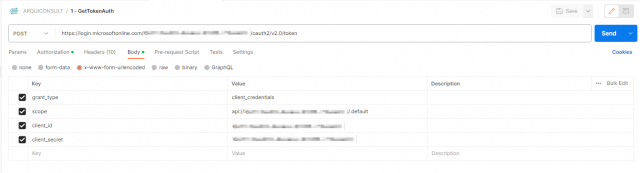
- POST Url – https://login.microsoftonline.com/{tenant ID}/oauth2/v2.0/token
- grant_type – client_credentials
- scope – api://{client_id}/.default
- client_id – client id from the App Registration
- client_secret – secret value created in step 4
The result of calling the API will be a token

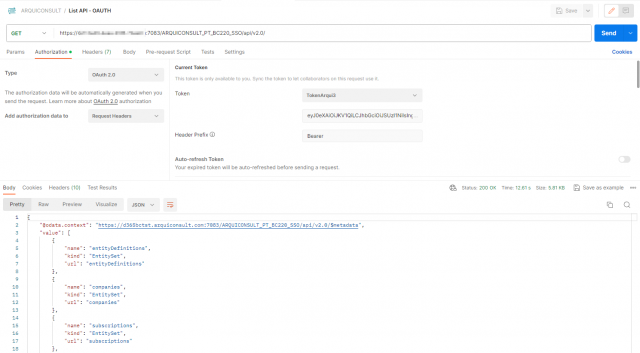
Using the previous token, we can access Business Central APIs. Authentication Type will be OAuth2.
Note: you might get the following error when testing the APIs

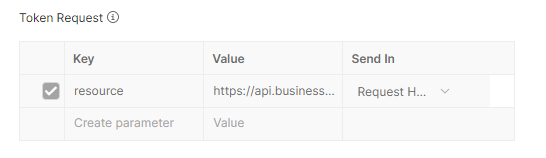
In this case, you should add the following query parameter when getting the token:
Value = https://api.businesscentral.dynamics.com/